How to Install Godot Plugins (Addons) in Godot 4, and Build Your Own
Quick answer: open the AssetLib tab at the top of the editor, search for the plugin, click Download, then Install. Then open Project > Project Settings > Plugins and tick Enable. You don’t need to restart the editor. For a plugin from GitHub, download the release ZIP, copy its addons/ folder into your project folder, and enable it the same way.
Plugin not in the Plugins list? Check that res://addons/<plugin-name>/plugin.cfg exists. A nested folder such as addons/addons/<plugin-name>/ won’t be detected. Some downloads called “plugins” are runtime scripts with no plugin.cfg: they never appear in the list and don’t need enabling (official docs ). Details for each method are below.
If you came here from a search for “Godot plugin,” you are probably trying to do one of three things: install one that someone recommended, find one that solves a specific problem, or write your own. This guide covers all three for Godot 4 in 2026, in that order, plus the terminology trap that catches most newcomers: in Godot, “plugin,” “addon,” and “EditorPlugin” mean three slightly different things.
What is a Godot plugin?
A Godot plugin is a chunk of code that extends the Godot editor or runtime. In practice the term is used loosely for three different things:
- Addon — the technical name in Godot’s docs. A folder under
res://addons/containing aplugin.cfgfile plus the GDScript / C# / GDExtension code that implements the feature. Enabled per-project from Project Settings → Plugins. - EditorPlugin — a specific GDScript class (
extends EditorPlugin) that hooks into editor lifecycle events, adds docks, custom inspectors, or import plugins. Most addons contain at least one EditorPlugin. - GDExtension — compiled native code (C, C++, Rust) loaded at runtime. Used when GDScript is too slow or when you need to bind a C library. GDExtensions can be packaged as addons but technically run a layer below the script API.
For 95% of conversations, “Godot plugin” means addon, and that’s what we use below.
How to install a Godot plugin
There are three install paths depending on where the plugin lives.
From the Asset Library (easiest)
The Godot Asset Library is the official, in-editor plugin browser.
- Open your project in Godot 4.
- Switch to the AssetLib tab at the top of the editor (next to 2D / 3D / Script).
- Search for the plugin by name. Use the Plugins category filter to narrow it down.
- Click the result, click Download, then Install.
- Open Project Settings → Plugins and toggle the plugin Enable checkbox.
That’s the whole flow. The editor extracts files into res://addons/<plugin-name>/ automatically.
Manual install from a GitHub release
Most maintained plugins distribute a .zip from their GitHub Releases page in addition to (or instead of) the Asset Library.
- Download the release zip.
- Extract it. Inside you’ll see an
addons/<plugin-name>/folder. - Copy that folder into your project’s
res://addons/directory. - In Godot: Project Settings → Plugins → Enable.
If the project doesn’t have an addons/ folder yet, create it at the project root.
Git submodule (for plugins you want to update independently)
For long-running projects, treating plugins as git submodules keeps them upgradable without re-downloading by hand.
cd path/to/your-godot-project
git submodule add https://github.com/<org>/<plugin-repo> addons/<plugin-name>
Then enable in Project Settings → Plugins. To update later: git submodule update --remote addons/<plugin-name>.
How to enable a plugin
After install, the plugin is on disk but inert. Enable it from:
Project → Project Settings → Plugins → toggle the Enable checkbox
Enabling runs the plugin’s _enable_plugin() and _enter_tree() callbacks, which register docks, autoloads, custom inspectors, or import plugins. If the plugin shows an error icon, the most common causes are:
- Missing GDExtension binary for your platform. Plugins shipping native code must include a
.so(Linux),.dylib(macOS), or.dll(Windows) for each platform. If a release omits your platform’s binary, you need to compile from source or wait for the maintainer. - GDScript syntax error in the plugin. Check the Output panel for the line — usually means the plugin targets a different Godot 4 minor version than yours.
- Conflict with another plugin’s autoload name. Two plugins both registering an autoload called
Managerwill collide. Autoloads are registered in the plugin script withadd_autoload_singleton(), so rename it there, or remove the duplicate under Project Settings > Globals > Autoload.
How to write your own Godot plugin
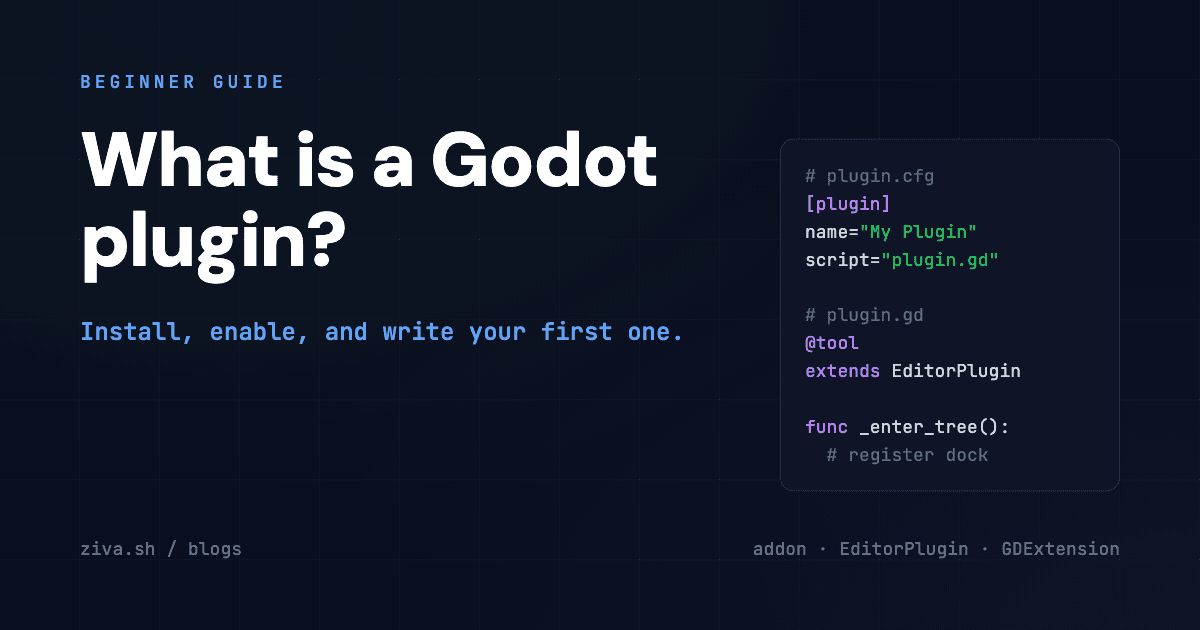
The minimum viable plugin is a single GDScript file plus a plugin.cfg. Here’s the full skeleton.
1. Create the folder
In your project:
res://addons/my_plugin/
  plugin.cfg
  plugin.gd
2. Write plugin.cfg
[plugin]

name="My Plugin"
description="Adds a Hello dock to the editor."
author="Your Name"
version="1.0"
script="plugin.gd"
3. Write plugin.gd
@tool
extends EditorPlugin

var dock: Control

func _enter_tree() -> void:
    dock = Label.new()
    dock.text = "Hello from My Plugin"
    add_control_to_dock(DOCK_SLOT_LEFT_BR, dock)

func _exit_tree() -> void:
    remove_control_from_docks(dock)
    dock.free()
The @tool annotation is the critical part — without it, the script doesn’t run inside the editor. _enter_tree() is the hook to register editor UI; _exit_tree() must undo everything so the editor stays clean when the user disables the plugin.
4. Enable it
Open Project Settings → Plugins, find “My Plugin,” check Enable. Your dock appears in the bottom-left editor dock area.
5. Common extension points
Beyond docks, the same EditorPlugin pattern supports:
add_custom_type(name, base, script, icon)— make your custom node show up in the “Add Node” dialog.add_import_plugin(plugin)— handle new file extensions in the FileSystem dock.add_inspector_plugin(plugin)— render custom inspector controls for properties.add_tool_menu_item(name, callable)— add menu entries under Project → Tools.add_autoload_singleton(name, path)— register a script that exists across all scenes.
Godot’s editor plugin docs cover each in detail. For deeper hooks (custom build steps, asset post-processing), EditorExportPlugin and EditorScript cover most of what’s left.
Where to find Godot plugins worth installing
The default sources, ranked by signal-to-noise:
- Godot Asset Library — in-editor browser. Lowest friction but the largest pool of abandoned junk. Filter by Plugins category and sort by Updated descending to skip dead projects.
- GitHub topic godot-plugin and godot-addon — actively maintained plugins usually tag themselves. Star count is a rough quality signal but recent commits matter more.
- The r/godot “what plugins do you use” megathreads — quarterly, surfaces what working devs actually keep installed.
- Itch.io — paid and one-time-purchase plugins (e.g. Godot AI Suite ) cluster here.
- Curated lists from blogs you trust — our Best Godot Plugins in 2026 post is the 11-plugin shortlist we keep installing on every new project, and Best AI Tools for Godot in 2026 covers the AI-specific tooling layer.
Plugins shipped with Godot 4.4 (you don’t need to install)
A category of plugins is no longer worth installing because the engine absorbed them:
- Jolt physics — the standalone Godot Jolt plugin is now a first-class physics backend in 4.4. Toggle in Project Settings → Physics → 3D → Physics Engine.
- Visual Studio Code integration — handled by the External Editor settings, no plugin needed.
- Git VCS — the built-in version control got enough features in 4.3 that the third-party
godot-git-pluginis redundant for most workflows. - C# bindings — installed via the .NET option during Godot install, not a plugin.
If a tutorial from 2023 tells you to install one of these, it is out of date.
AI plugins are a category of their own
Worth calling out separately because the AI-plugin space moved fast between 2024 and 2026. The current categories:
- In-editor AI agents — Ziva is the most complete option (manipulates the scene tree, generates code and assets, runs tests, reads debugger output). Free tier available.
- MCP bridges — connect external coding agents (Claude Code, Cursor) to Godot. The free Godot AI MCP plugin by dlight and the $5 Godot MCP Pro are the leaders.
- Local-model chat — AI Assistant Hub for Ollama and free Gemini.
Full breakdown with side-by-side comparisons in Best AI Tools for Godot in 2026 and the workflow walkthrough in How to Use AI With Godot.
Troubleshooting
Plugin doesn’t appear in Project Settings → Plugins.
The plugin.cfg file is missing or malformed. Open it and check for the [plugin] section header and the script= line.
Plugin appears but the Enable checkbox does nothing.
A GDScript error is preventing _enter_tree() from running. Open the Output panel and look for the error.
“Cannot load addon script” error.
The path in plugin.cfg’s script= field is relative to the addon folder, not to res://. script="plugin.gd" not script="res://addons/my_plugin/plugin.gd".
Plugin works in editor but breaks at runtime.
EditorPlugin code is editor-only and shouldn’t run in builds. Wrap runtime-sensitive code with if Engine.is_editor_hint(): checks.
What to install next
If you’re new to Godot plugins, the install order we’d recommend:
- One AI plugin — Ziva for the full agent or one of the MCP bridges if you already use Claude Code.
- A testing framework — GUT . Pay the install cost before your project gets complex enough that regressions cost you weekends.
- A behavior framework — LimboAI for compiled-fast state machines and BTs, or Beehave if you prefer pure GDScript.
- One camera plugin — Phantom Camera , unless your game uses one fixed camera.
The 11-plugin shortlist with full reasoning is in Best Godot Plugins in 2026.
The plugin ecosystem keeps shifting as Godot 5 lands. We refresh the recommendations annually.