Installation
Ziva works with Godot 4.2 or later on Windows, macOS and Linux. You need an internet connection for AI features.
Close the project in Godot before running the installer. Installing Ziva does not need an account or paid plan.
Automatic Installation (Recommended)
macOS
- Open the download page and click Download for Mac. Choose the Intel download if you have an Intel Mac.
- Open the downloaded file.
- Click Open when macOS asks.
Windows
Open PowerShell and paste this command:
irm https://ziva.sh/install.ps1 | iexLinux
Open your terminal and paste this command:
curl -fsSL https://ziva.sh/install.sh | bashChoose a project in the installer
- Select Existing project and find your project with Browse, or select New project and choose a name and an empty folder.
- Leave the installation options at their defaults unless you need a specific version.
- Click Install Ziva.
The installer downloads Ziva and, if needed, Godot. It opens your project with the Ziva panel when Launch Godot when complete is checked. If you turn that off, open the project yourself. No extra restart is needed after the installer opens it.
The installer does not upload your project source files. See our Privacy Policy.
Optional: use Terminal on a Mac
Run the same installer from Terminal:
curl -fsSL https://ziva.sh/install.sh | bashOptional: copy the plugin files yourself
Manual Installation
These steps are for a first installation. To replace an existing installation, close Godot before copying files, then reopen your project. See the Update Guide.
Step 1: Download the Plugin
Download the plugin zip from the download page or GitHub releases .
Step 2: Open Godot
Open your project and create an addons folder if it does not have one. You can right-click the FileSystem panel to open the project folder in your file manager.
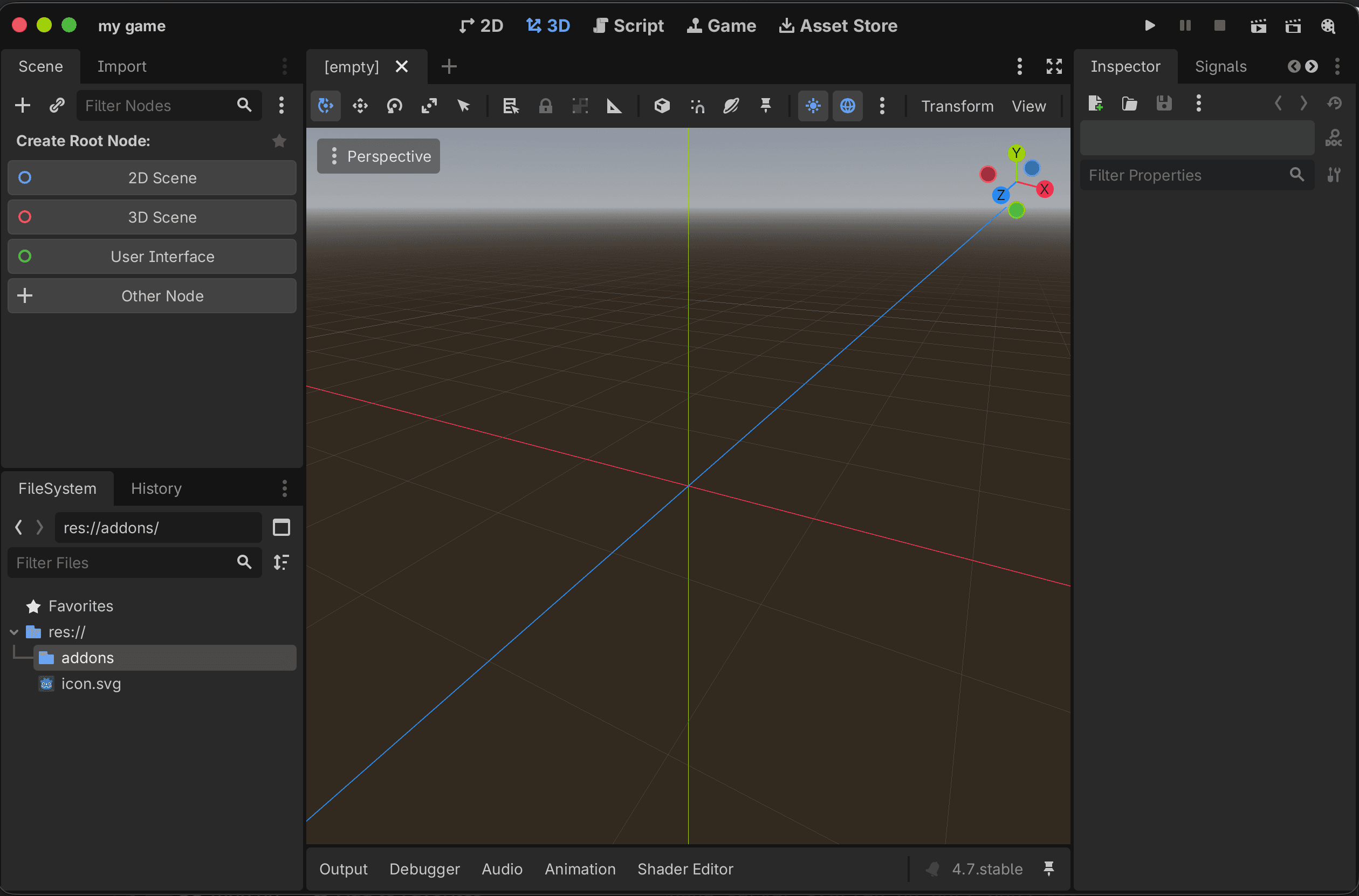
Step 3: Extract and Copy the plugin
Extract the zip and copy its addons/ziva_agent folder into your project’s addons folder.
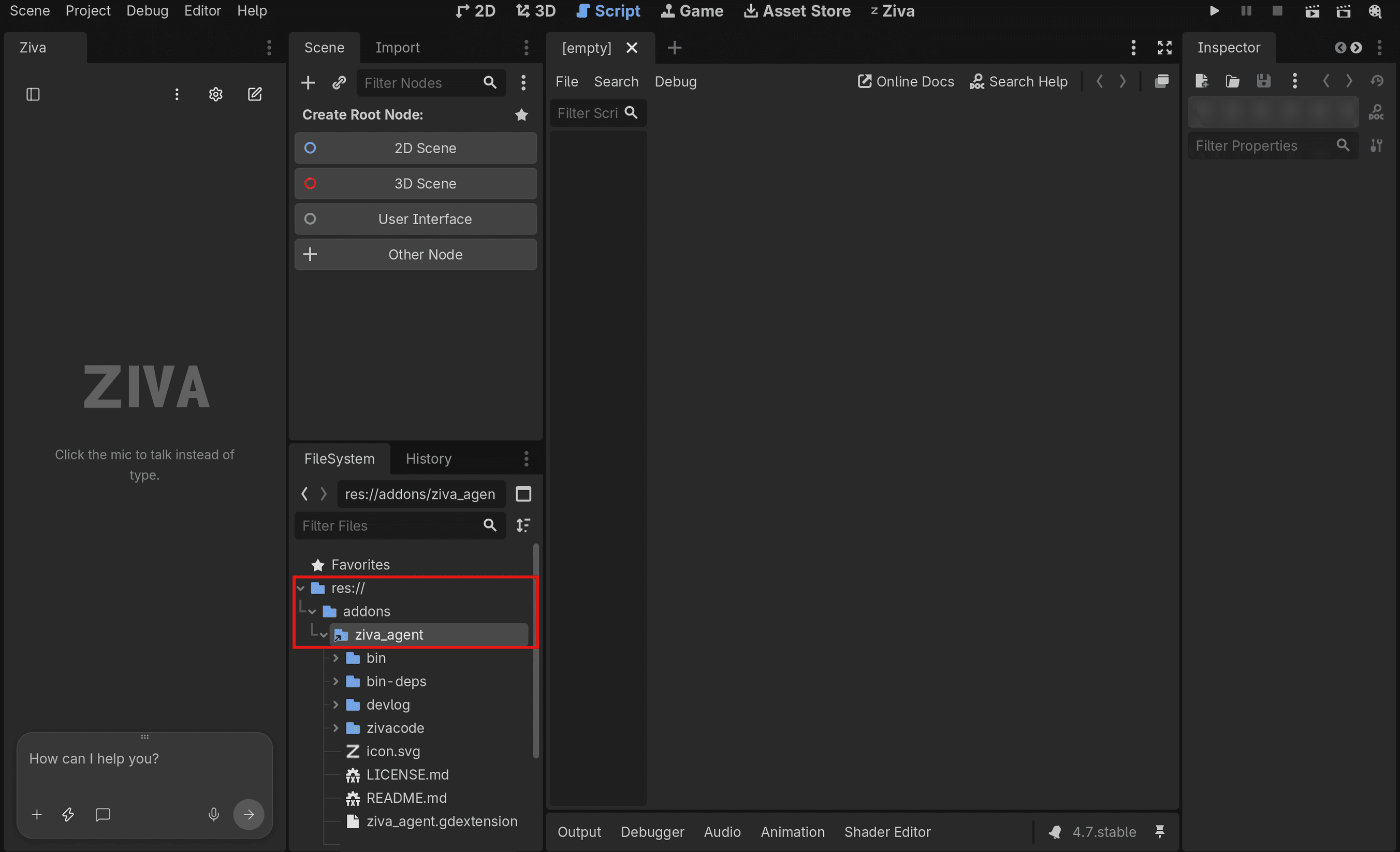
Step 4: Switch Back to Godot
Wait for the Ziva panel to load. A first installation does not require a restart, but restart Godot if the panel does not appear.
Troubleshooting
If installation fails, follow the error message and choose Try again. If the Ziva panel is missing, restart Godot and check that your project contains addons/ziva_agent/ziva_agent.gdextension.
See Installation & Loading for more help, or contact support.
Next Steps
Sign in through the Ziva panel or at ziva.sh/login , then ask for a small change to your game. Your account shows your current allowances and offers.
To use another AI account or a model on your own computer, see Existing Subscriptions or Local Providers.